Cuebly uses three different words to describe whether an app user can be reached. They are easy to mix up, but each one means something else.
| Means | Set by | Seen where | |
|---|---|---|---|
| Availability | The user wants to receive messages and assistance requests | The user, with a switch in the app | The app's Home screen and Settings |
| Presence | The device is inside a geofence | The device's location | Geofences, the app under Groups > Locations |
| Connection | The device is online | The device and its network | The green dot on device cards and team members, "Online" in the app |
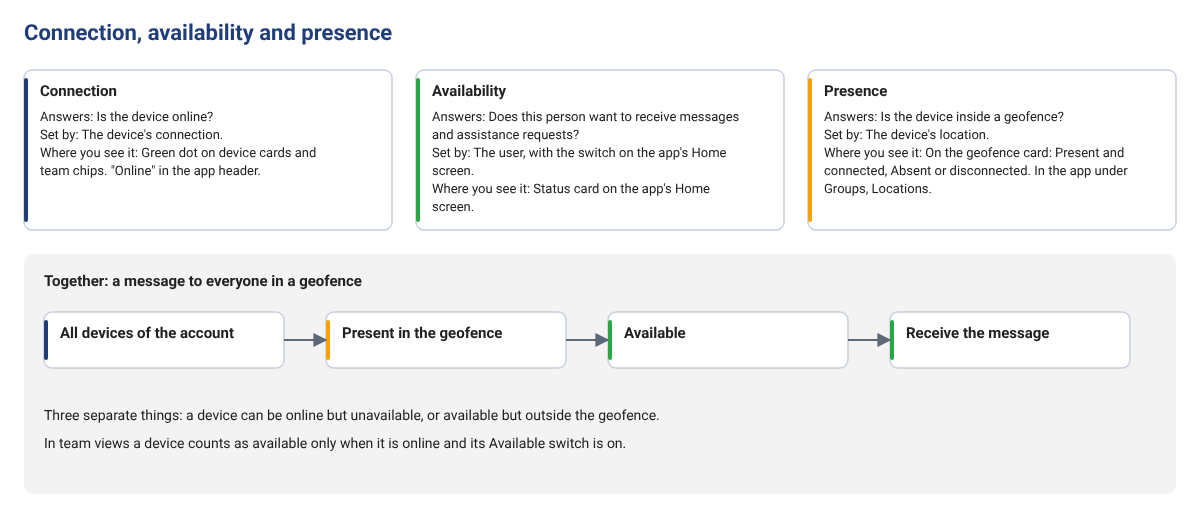
Connection, availability and presence are three different things.
¶ Availability
Availability is the user's own choice: "I am working, send me messages", or "I am off duty".
To change it, the user taps the Available switch on the Home screen of the app. The platform receives the change at once.
- Available: the user receives messages and assistance requests.
- Not available: the user does not receive them.
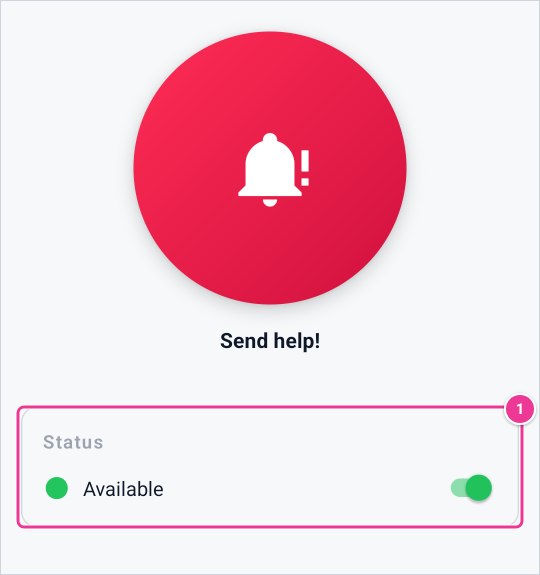
Switch Available on or off under Status (1).
¶ Presence
Presence is based on location. A device is present in a geofence when it is inside that zone.
- The app checks the geofences assigned to it in the background. On Android you see a permanent notification "Cue is checking configured geofences" while it does this.
- In the customer environment, Geofences shows who is Present and connected and who is Absent or disconnected.
- In the app, Groups > Locations lists the geofences of the user with their radius and a map.
Presence can start scenarios with the triggers Enter geofence, Exit geofence and Geofence attendance. A scenario can send a message to everyone present in a geofence; of those, only users who are available receive it.
¶ Connection
Connection tells whether the device is online. A green dot on a device card or a team member means the device is connected. The app shows Online at the top.
A device that is offline cannot receive messages right away. In the customer environment, the send message icon of an app device is grey when the app user is not available. Some scenario actions offer Also send to app users who are offline.
¶ How they work together
In team overviews, a member counts as available only when the device is online and the user is available. Offline, or not available, both count as not available.
Example: Sam is present in the geofence "Warehouse" and online, but switched availability off at the end of the shift. A scenario that messages everyone present in "Warehouse" does not reach Sam.